Uncensored AI Video

Uncensored AI Video Generator

Uncensored AI Video Generator brings AI images, text-to-video, and image-to-video into one workbench. Create a still, animate a photo, or describe a scene from scratch. Compare model settings, check the credit cost before submitting, and keep your finished work in one account.

Uncensored AI Video
Veo 3
Kling AI
PixVerse
Vidu AI
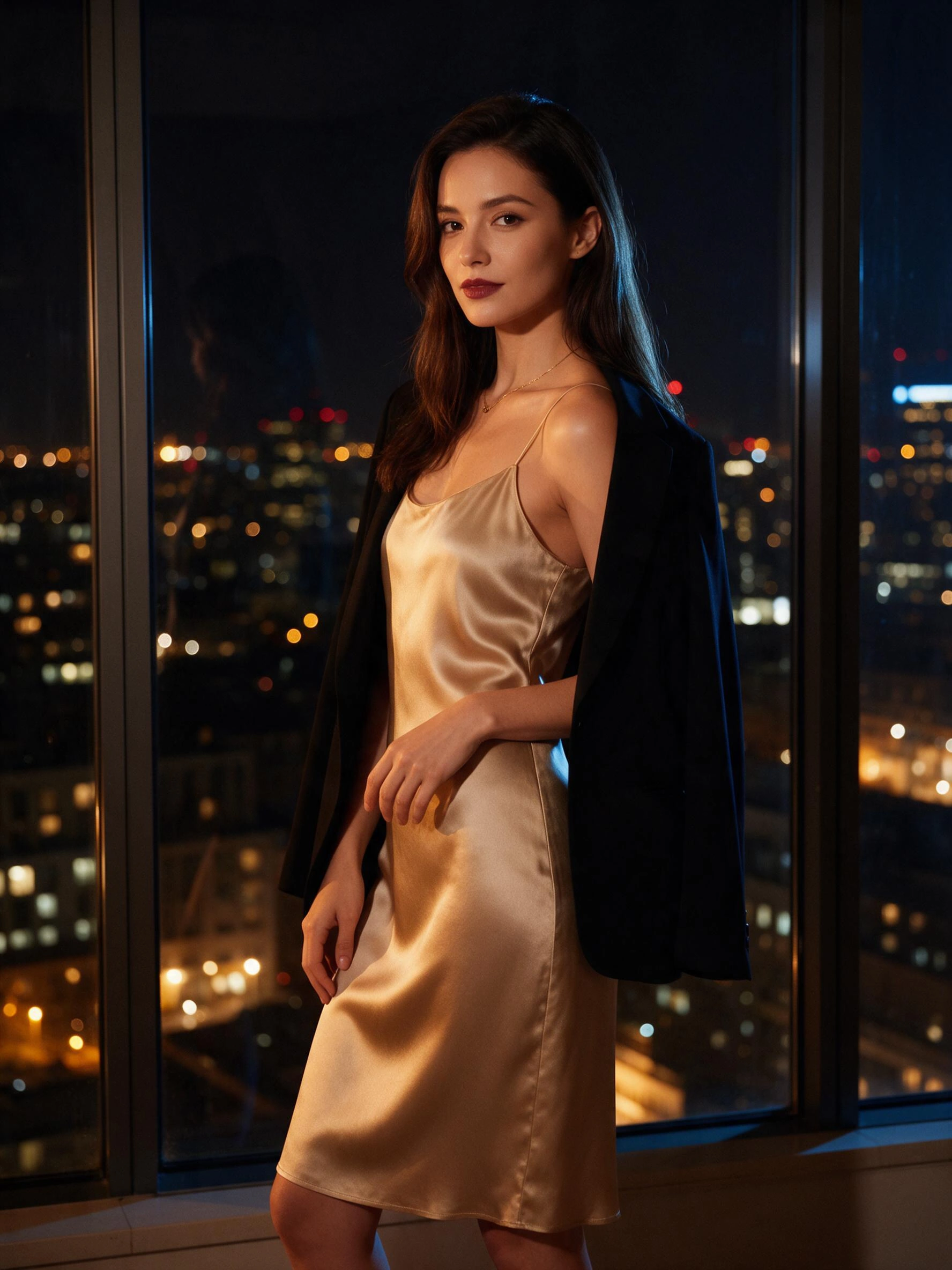
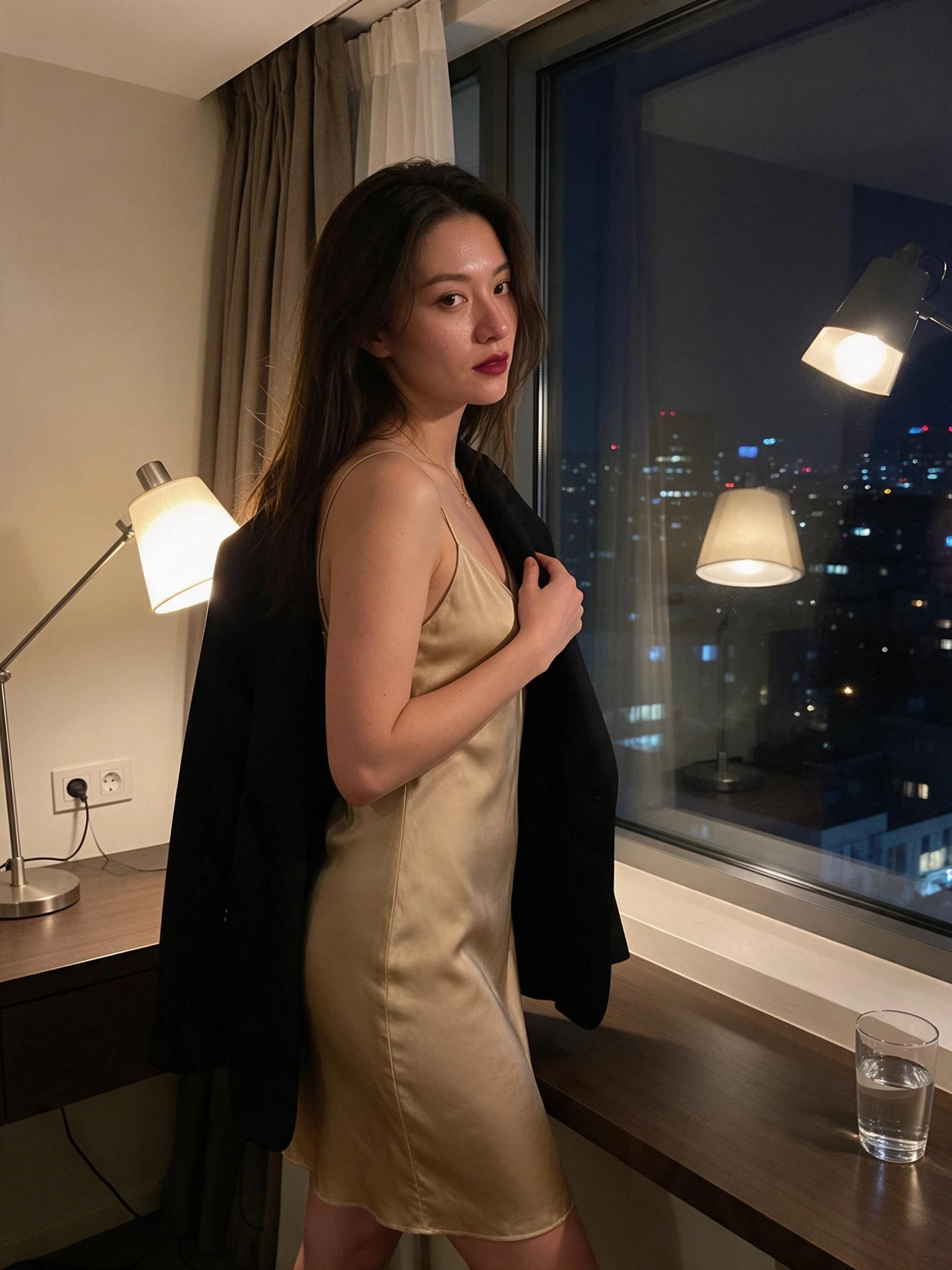
Silk, bare shoulders, and city lights

Silk, bare shoulders, and city lights

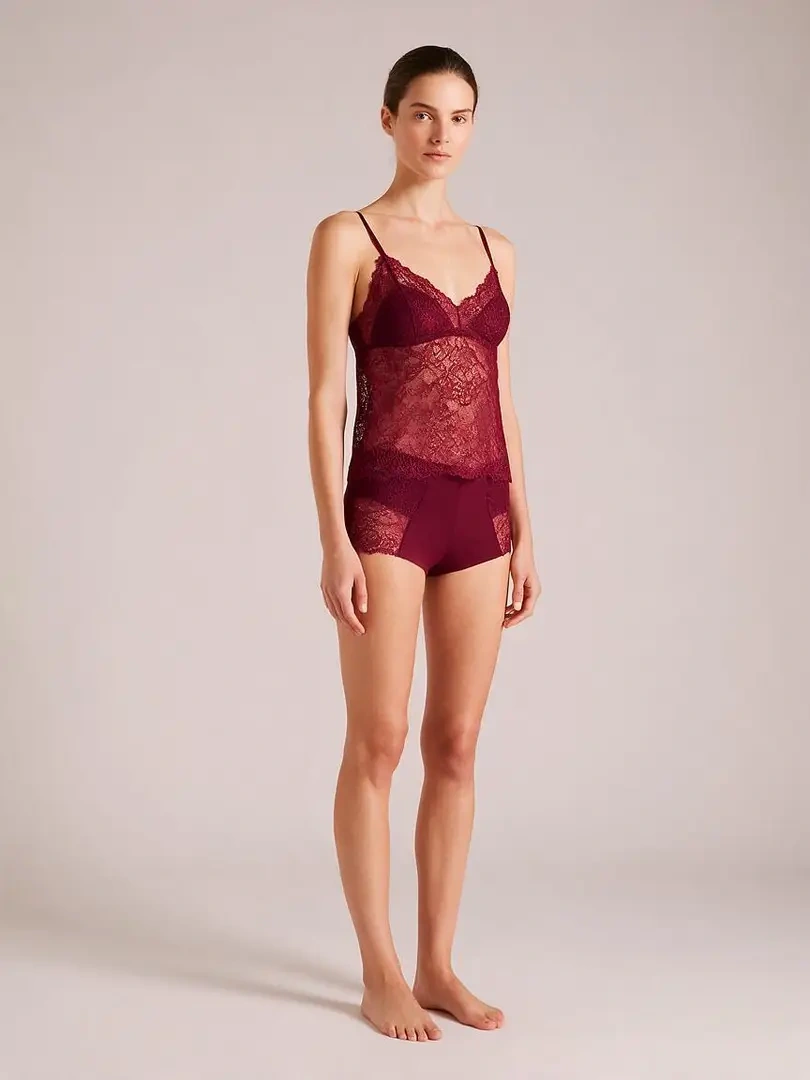
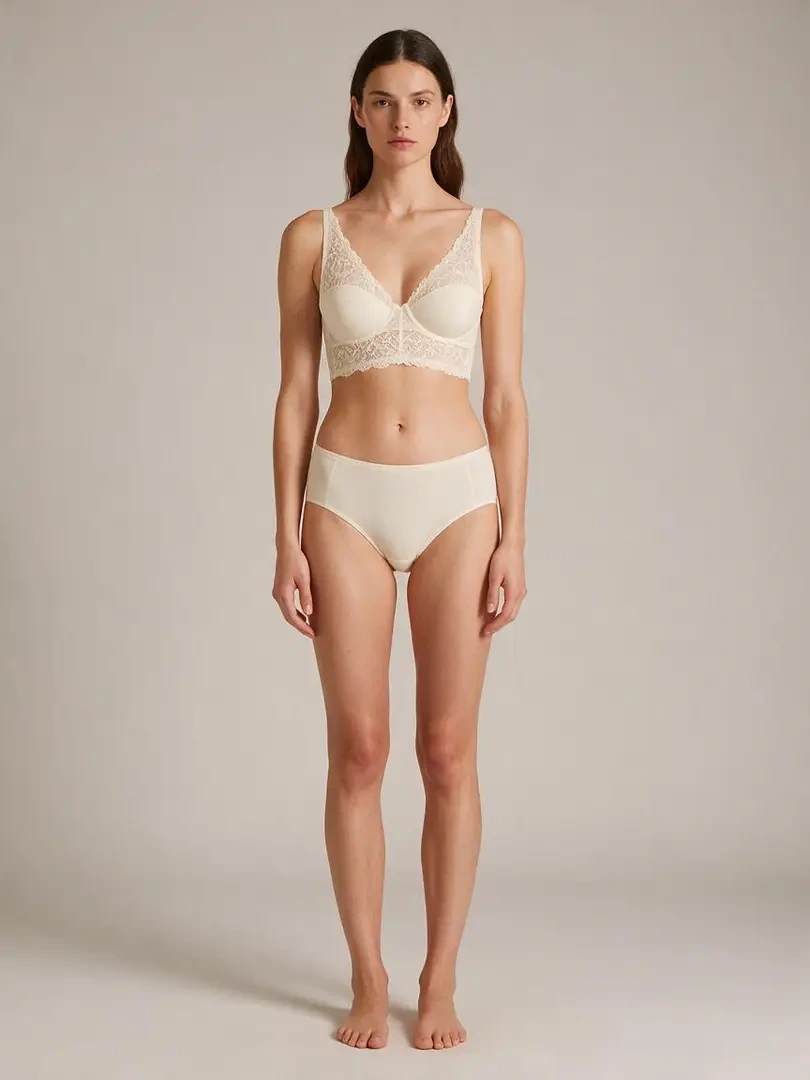
Lace lingerie in soft studio light

Lace lingerie in soft studio light

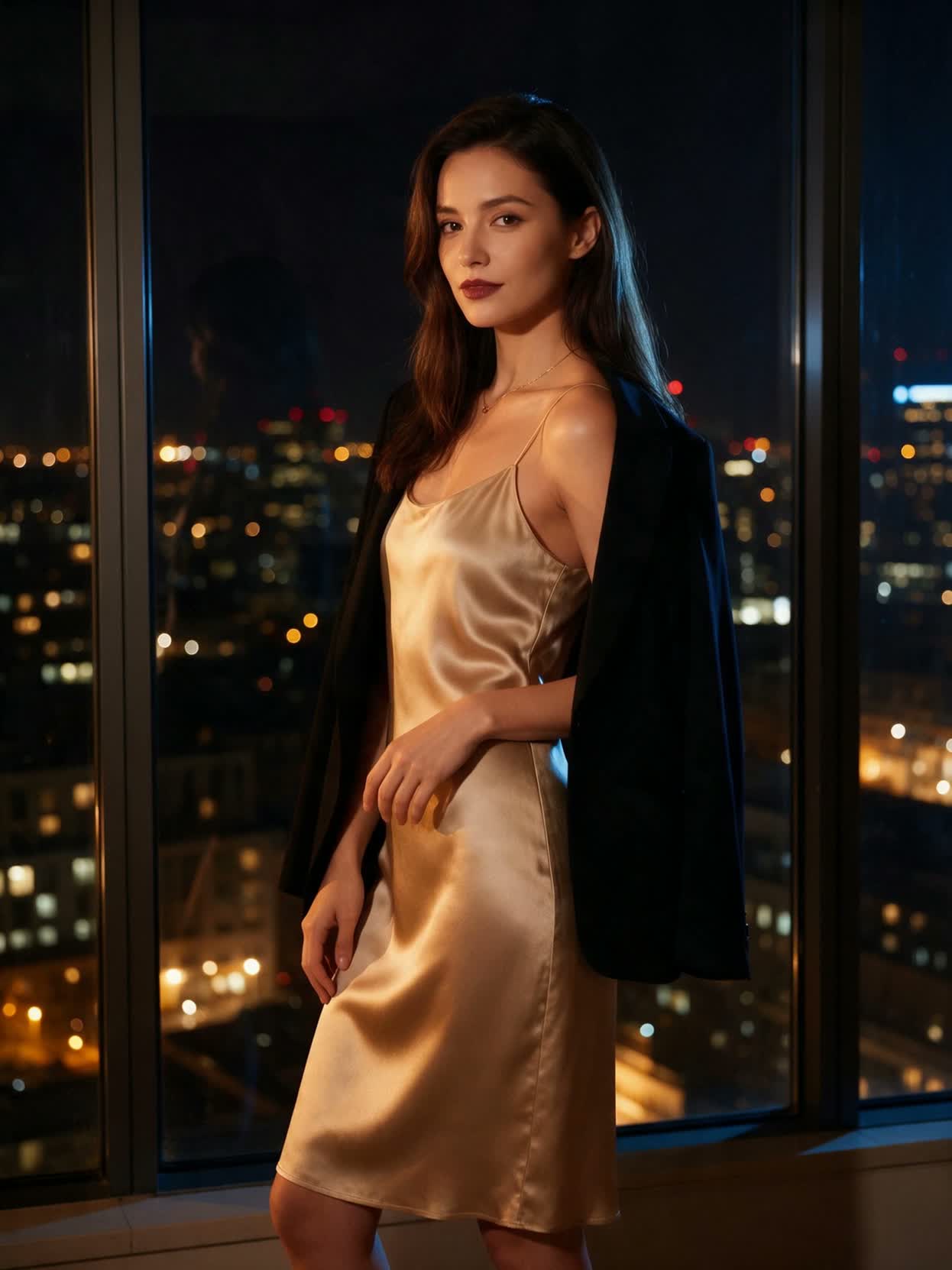
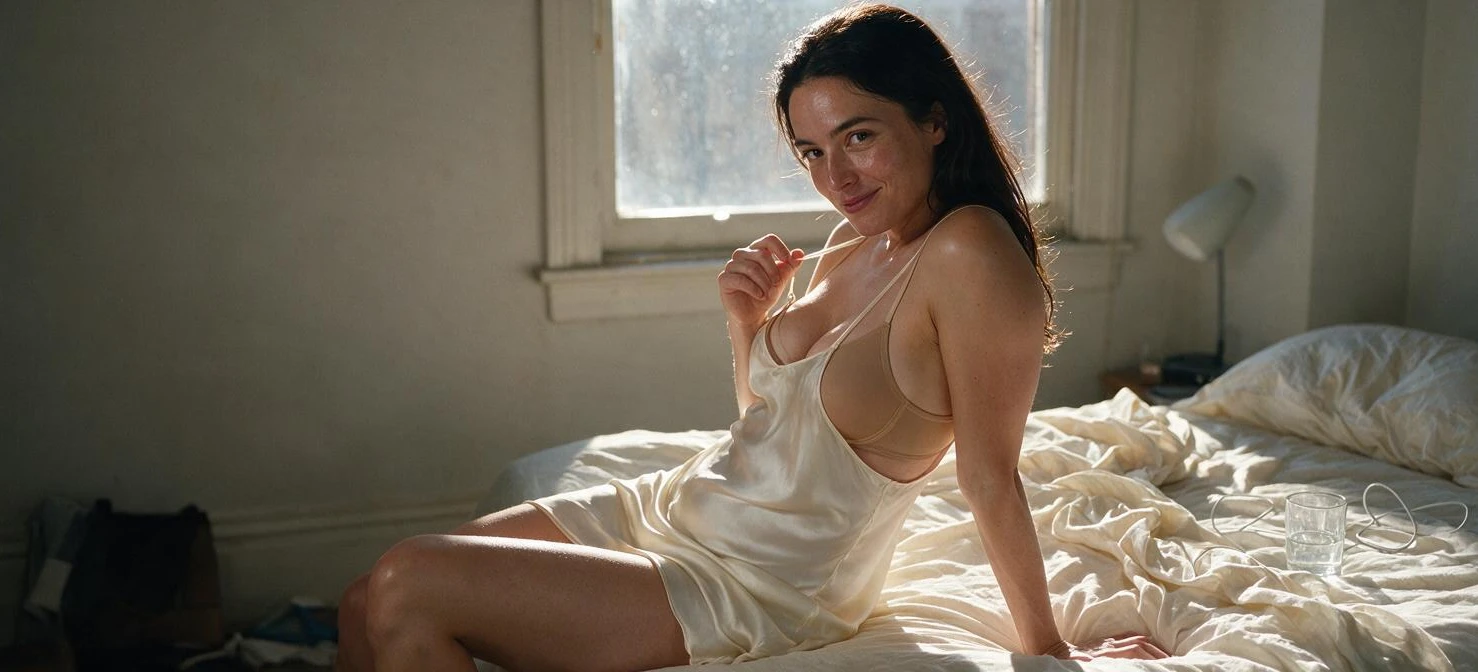
An intimate evening by the window

An intimate evening by the window

One Uncensored AI Video Generator, three ways to start

Start with the material you have, rather than forcing every idea through image-to-video. This site brings AI images, text-to-video, and image-to-video into the same account. The homepage opens in image-to-video with Wan 2.7 Spicy selected; the Image and Video entries let you change direction without creating another account.

Create AI images before you animate

Choose Image when you need a new composition, a different outfit, or a still portrait. Start from text or use a reference in a supported image mode. Describe the subject, framing, setting, and lighting. Check the face, hands, and background in the finished image before spending credits to animate it. A video prompt is a poor place to repair a source image.
Use text-to-video for a scene without a source photo

Choose the text-to-video mode in Video when the scene does not yet exist. Write one subject, one action, and one camera direction. For example, a woman in an evening dress turns toward the camera under neon light. State what happens first and what happens next. Too many cuts or competing movements can make a short clip harder to follow.

Use image-to-video to preserve a visual starting point

Upload a still when the character, outfit, pose, and crop are already close to your goal. Describe what should move and what should stay consistent. A slow turn and a gentle camera push give a clearer test than replacing the location and clothing at once. The input guides the result; it does not guarantee perfect identity or frame-by-frame consistency.

Treat inspiration as a reusable setup

Open Inspiration to explore the adult-focused catalog. A template can help you choose a prompt and a workflow. Check which input it needs before you use it, then review the selected model and cost. Preview media are examples of an idea, not a promise that every model or prompt will reproduce the exact clip.

Choose an uncensored AI video model by its actual controls

Uncensored describes the creative focus of the workbench. It does not mean every listed model has the same content policy, accepts every request, or supports every parameter. The active model and the options shown beside it determine what you can submit.

Check the input mode before the model name

A model that accepts a text prompt may have different options in its image-to-video path. First confirm whether your task needs a still, text, or another supported input. Then select the model. If an upload field or setting disappears after switching, recheck the new requirements instead of assuming the previous setup still applies.

Test motion with a short duration first

A short take is useful for checking movement, expression, and camera direction before attempting a longer sequence. More seconds leave more time for a subject to drift or for a complex action to break down. Available durations depend on the model. Read the updated credit estimate whenever you change length; a longer result can cost more.

Match framing and resolution to the destination

Use the aspect ratio that fits where the result will appear. A close portrait leaves less space for broad body movement; a wider frame gives the subject more room. Choose from the resolutions offered by the selected model. A higher output resolution does not automatically repair blurry source details, anatomy, or an unclear action.

Change one instruction between versions

Keep the input, model, and settings stable while testing a new camera move or motion note. That makes the next result easier to compare. Once the movement works, adjust framing or resolution separately. Several changes at once may produce a better clip, but they make it harder to identify which change helped.

Plan credits and keep image and video results together

Browsing the site does not create a spendable credit balance. Sign in before generating or purchasing, then use the account area to review your balance, transactions, plan, and saved work. Images and videos draw from the same account balance.

See the cost before you submit

The workbench displays a credit estimate for the current model and settings. A new generation is a new run, including a revision of an earlier prompt. Compare that estimate with your available balance before submitting. Pricing explains the current purchase options; the credit center records the account changes so you can review usage after a run.

Registration rewards require verification

Simply visiting a page, following an advertisement, or crawling the site does not grant credits. Any registration gift follows the existing VideoAny rules after email verification and account, device, and network checks. It is not a reward for each visit or each browser session. Sign in with your existing account to use an existing balance.

Separate a payment return from credit delivery

A browser redirect back from checkout does not by itself prove payment. The payment service must confirm the transaction before the account receives the purchased entitlement. Review Credits and Billing after returning. If a confirmed payment is missing, contact support with the order reference rather than buying again immediately.

Preview, compare, and download saved work

Use History for task progress and My Works for the images and videos attached to your account. Open a completed result to inspect it before downloading. Keep a local copy of the versions you want to retain. An inspiration preview and a job still waiting in the queue are not your finished downloadable result.

Troubleshoot an AI image or video run before spending again

Read the task state before retrying. A queued job, a failed job, an insufficient balance, and a completed result with the wrong motion need different next steps. Repeatedly pressing Generate can create additional paid runs rather than repair the original one.

The upload is rejected or the field is missing

Confirm that the active workflow accepts the material you selected. Check the file type, size, and required input shown in the upload control. If you switched models, review its requirements again. For image-to-video, use a clear first frame with the intended subject already visible; text alone cannot replace a required image upload.

The task stays queued or reports failure

Check History instead of assuming that a slow preview means failure. Queue time varies with demand, model, and output settings. A failed run should release its reserved credits through the billing lifecycle; refresh the task and credit history to check the final state. If they disagree, keep the task reference for support rather than immediately submitting a duplicate.

The result changes the face or moves too much

Return to the source still and remove conflicting instructions. Start with one modest movement, then add camera direction only after the subject stays reasonably consistent. For a text-only scene, reduce the number of people, actions, and cuts. A more specific prompt helps guide a model, but no wording guarantees a flawless result.

The balance is too low or the download is unavailable

An insufficient balance requires a smaller supported configuration or more credits; refreshing the page does not add funds. A download requires a completed result that your account can access. Open the task details and confirm you are signed in to the same account. Keep the order or task reference when asking support to investigate.

Bring your image to life with Uncensored AI Video

Start with an image that captures your subject, then add movement, camera direction, and atmosphere. The examples below illustrate motion ideas; they are not verified outputs from every selectable model.

Illustrative motion clip, not a verified output
Template example clip
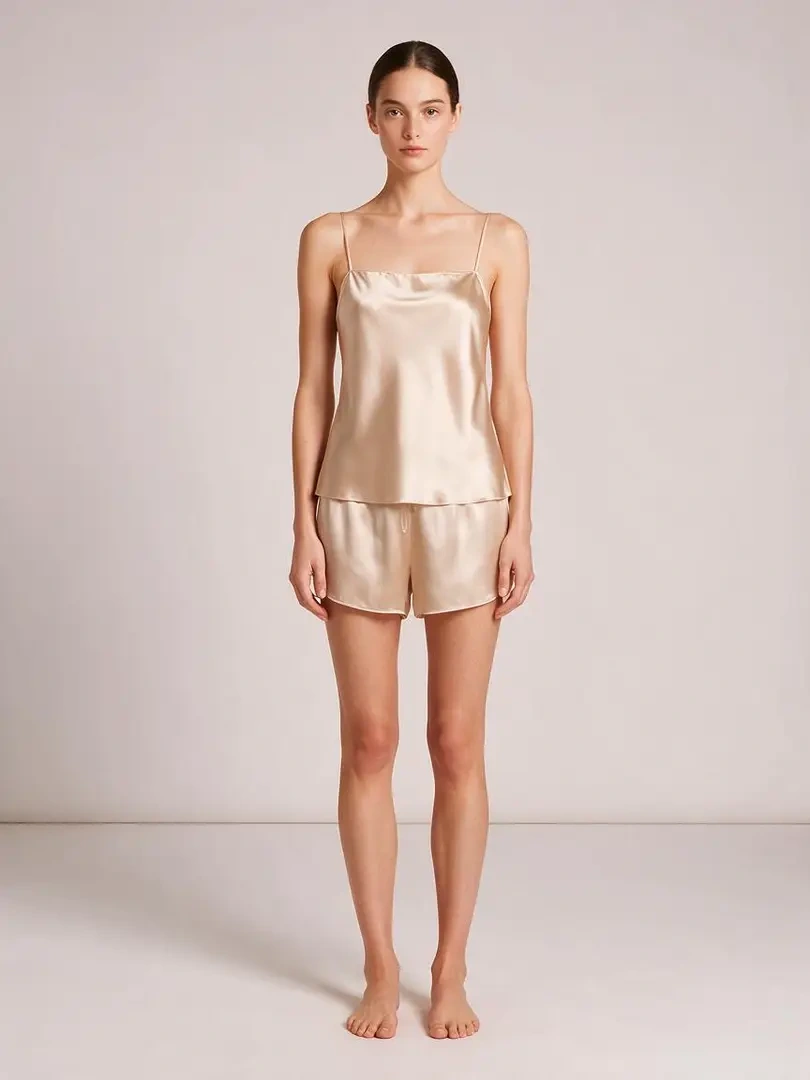
✦She slowly turns in champagne satin, then meets the camera with a soft gaze.Keep the camera still as the satin catches the light with each turn.

Start from the uploaded still

Generate a draft, then tighten the motion prompt

You do not need a finished storyboard. Keep the subject from the first-frame still, describe the motion you want, generate a short draft, then change one instruction at a time. Recheck the displayed credit cost after duration or resolution changes.

Your Uncensored AI Video controls

Choose a model, adjust duration and resolution, and refine the motion prompt in the same workbench. Available settings and credit costs follow the selected model.

Keep the subject from the still, then ask for motion
✦She turns toward the camera in a silk slip, city lights behind her.A lingering glance over one shoulder, warm light on silk.
01

Keep the subject from the still, then ask for motion

This is not a story typed into an empty box. The first-frame still has to already hold the figure, crop, and lighting you want to keep. Prompt only the motion, then judge the draft against that upload.

Iterate duration and resolution with the credit cost in view
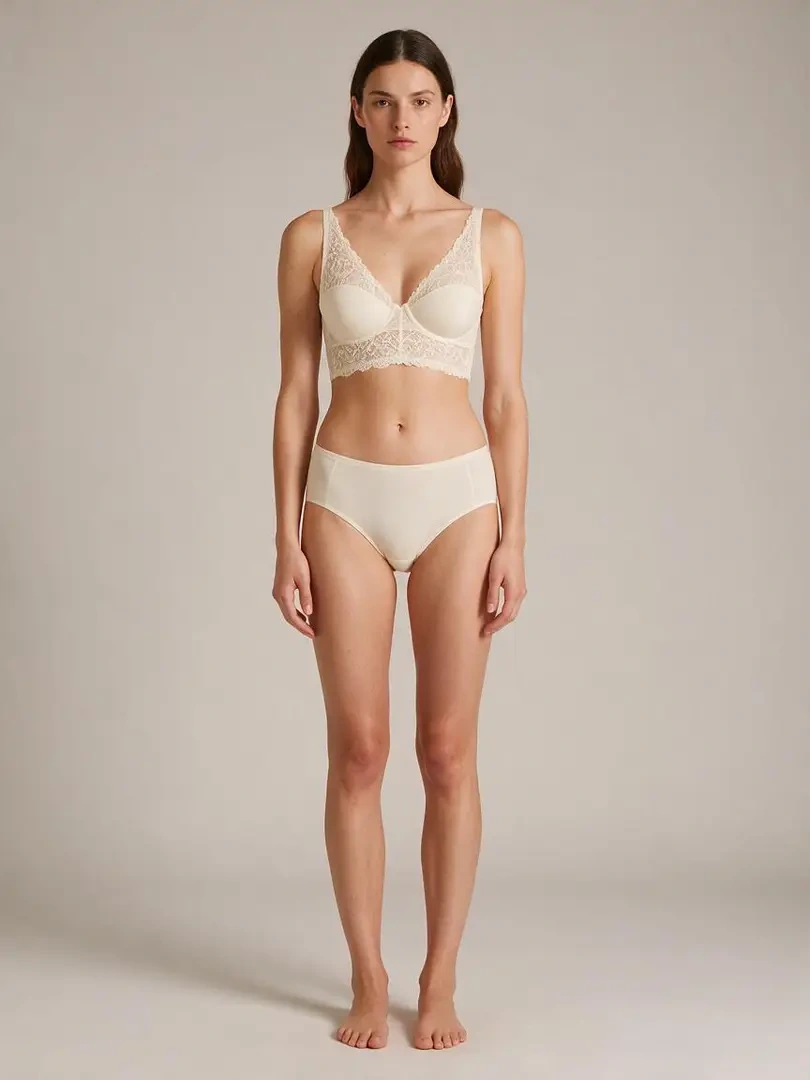
✦She makes a slow quarter-turn in ivory lace, then faces the camera.Soft studio light follows the lace as she shifts her weight.
02

Iterate duration and resolution with the credit cost in view

Stay in this workbench from upload to History. Changing length or resolution can change the displayed credit cost. Read that number before you generate again.

Choose the model for your video idea
✦She lets the robe slip from her shoulders, revealing a black satin dress.A slow turn in a satin slip against the glow of the city.
03

Choose the model for your video idea

Compare the available video models and set the duration, resolution, and other supported options. Wan 2.7 Spicy is the initial selection; it is not the only model available.

Stay in the browser workbench
✦Champagne satin shimmers as she turns gently in soft light.Keep the framing steady and let her gaze return to the lens.
04

Stay in the browser workbench

No extra editor install is required. Open this page, upload the still, write the motion prompt, and manage finished clips in History.

Make room for your next video idea

Explore portrait animation, fashion motion, character scenes, and short creative clips. Use an inspiration template as a starting point, then adjust the input and settings for your own take.

A woman in an ivory silk robe in warm bedroom light

Creators who already have a still

When the figure already exists in a photo, a short motion prompt is enough to test a social take. A script without a still belongs on another workflow.

A burgundy lace lingerie look in soft studio light

Brands starting from a pack shot

A catalog still can take a small camera move or a fabric shift. Compare the silhouette to the upload after every run.

A woman in a satin slip beside a city window at night

Directors checking a neighboring take

Use a locked first-frame still to preview a camera idea before you commit to a longer shoot. The template clips are illustrative, not dailies from this model.

An ivory lace lingerie portrait in a softly lit studio

Marketers comparing motion versions

Generate a few motion versions from the same still, then pick a rhythm. Extra takes still spend the credits shown for that run.

A woman glancing over her shoulder in a silk slip

Instructors animating a diagram

A clear diagram still can take a simple pan or zoom. Keep labels readable, and do not ask the page to invent a lecture from text alone.

Workbench notes

A real iteration loop, from still to first take

Write the keep-and-move notes first, generate, then use the draft to correct the next motion prompt. The cards below show common work habits. They are not reviews of named users, and they are not proof of a specific clip.

He Yuxuan

E-commerce advertising operator

“I keep the product still, write a short motion prompt, generate a few takes, and pick the one whose rhythm fits the listing.”

Gu Zhiyuan

Short-form video creator

“A first-frame still gets me to a motion draft faster than starting from a blank timeline, as long as I keep the subject honest.”

Li Peishan

YouTube creator

“I reuse the same still and only change camera language, which makes the next take easier to compare.”

Xu Ruizhe

Student creator

“I test one motion direction at a time from the same still instead of rewriting the whole scene.”

He Zhiyu

Founder

“A product still plus a motion prompt is a faster promo draft than building keyframes by hand.”

Wu Zhiqing

Instructor

“A diagram still can take a simple camera move so a process is easier to show. That is a workflow note, not a classroom result claim.”

Frequently asked questions

Answers about Uncensored AI Video, models, credits, and your finished clips.

What is Uncensored AI Video?+

Uncensored AI Video is an online AI video workbench with image upload, motion prompts, model selection, and inspiration templates. The homepage starts in image-to-video mode with Wan 2.7 Spicy selected. You can choose another available model and review its settings before generating.

How long does a clip take to generate?+

Wait time follows duration, resolution, and the current queue. After you submit, watch History for status, then preview or download when the task finishes.

Why does the clip differ from the motion prompt?+

The still already holds the subject. Split the motion prompt into keep / move / camera / lighting, and avoid asking the figure to leave a pose the upload never held. If the keep list drifted, simplify the next run instead of stacking adjectives.

Can I revise a clip I do not like?+

Yes. Keep the same first-frame still, change one motion or camera note, and generate again. Compare versions in History. A new still is only needed when the source subject is wrong.

Does Uncensored AI Video use credits?+

You can browse the workbench and inspiration templates before generating. Generation uses credits; the cost appears before you submit and changes with the selected model and settings. Sign in to see your balance or open the purchase dialog for more credits.

Can I use a generated video commercially?+

Check rights to the uploaded still, the selected model terms, and your Uncensored AI Video plan before any commercial use. This page does not grant a commercial license.

Three steps from still to motion

How to create with Uncensored AI Video

Uncensored AI Video workflow at a glance

Keep the still, the motion prompt, and the credit preview in one workbench instead of bouncing between an editor timeline and a separate generator.

Uncensored AI Video workflow at a glance
Feature comparisonUncensored AI VideoA generic editor
Ease of useUpload a first-frame still and a motion prompt in one workbenchScenes and editing must be built on a timeline
Visual varietyExplore different motion styles with the available video modelsFewer looks unless you change the source still
Prompt readingReads keep / move / camera notes against the uploaded frameKeyword matching with little use of the still
Templates and effectsExplore the shared inspiration catalog and reuse a template in the workbenchFewer reusable looks after a first export
What this page coversImage upload, model selection, inspiration, and video history on one pageA generic editor that is not built for this path
CustomizationAdjust the input, prompt, model, duration, or resolution for the next runLittle room to iterate after the first export
Generation timeCloud generation; wait time follows clip length and queueSlower and dependent on local hardware
OutputOutput follows the selected model, duration, and resolutionQuality and watermarks depend on the other tool’s plan
Use casesPortrait, fashion, character, and other creative video ideasUsually limited to one editor job
ReviewFinished clips land in History on this accountNo shared History on this page
PricingCredit cost shown before each run; upgrade only if you need moreHigher subscription cost with less flexibility
Uncensored AI Video fashion background
Uncensored AI Video

Create your next Uncensored AI Video

Choose a template or upload your own image. Set the mood, pick a model, and create a video from the same workbench. Preview your finished clips in History and download the versions you want to keep.

View pricing